Apple Pay


Your iPhone is now your Alliance Bank Visa Credit Card.
Apple Pay is an easy, secure, and private way to use your Alliance Bank Visa Credit Card on all your Apple devices.
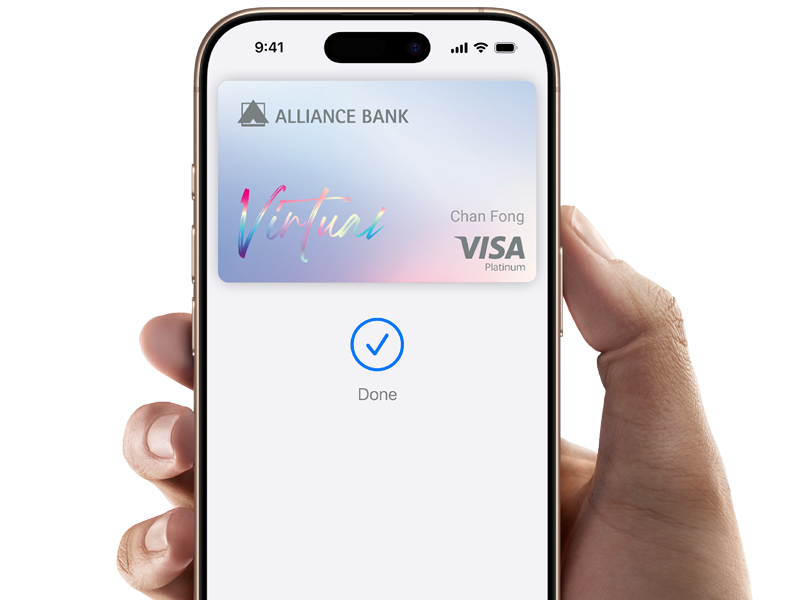
An easy, secure and private way to pay.
Apple Pay is an easy, secure, and private way to use your Alliance Bank Visa Credit Card on all your Apple devices.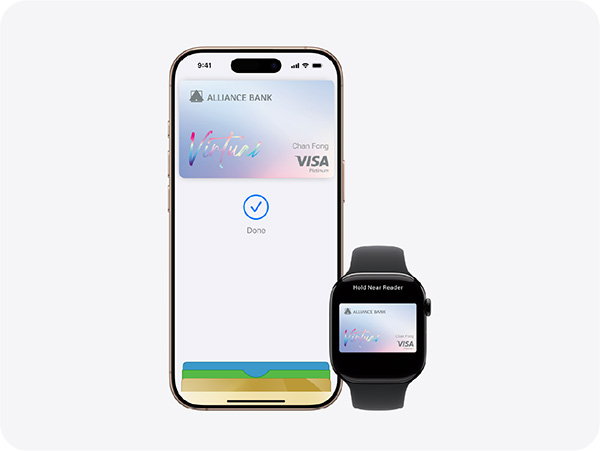

Pay with ease.
On all your Apple devices.
Apple Pay is built into iPhone, Apple Watch, Mac and iPad. Set it up in a few steps and you can easily use your Alliance Bank Visa Credit Card across all your Apple devices to make purchases online, in apps and in person.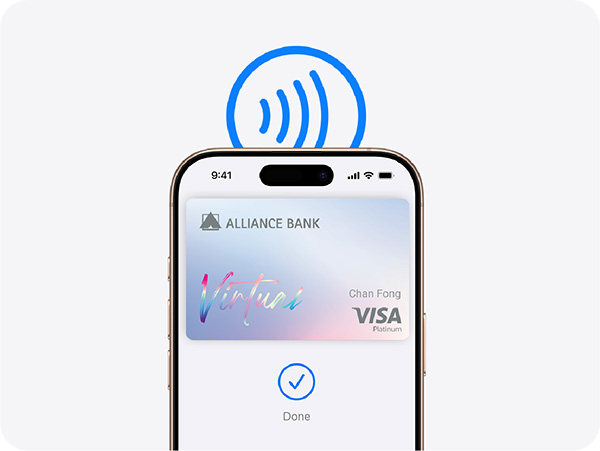

Shop in person. Online.
Or in apps.
Apple Pay is accepted by millions of merchants around the world – in person, online, or in apps. To use Apple Pay to pay with your Alliance Bank Visa Credit Card, simply look for the  or
or  at checkout.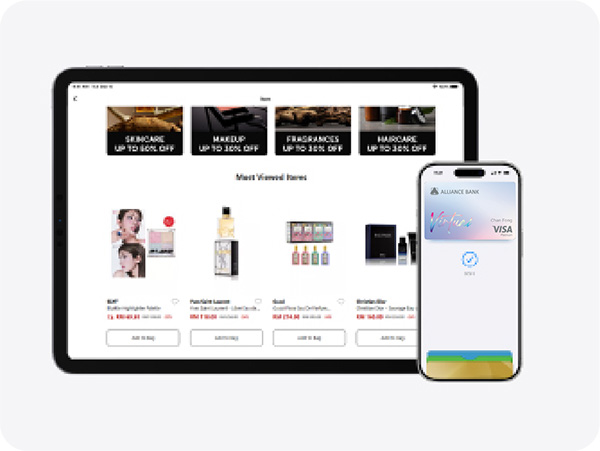

An easy checkout
every time.
Apple Pay lets you check out with Face ID and Touch ID – helping you save time while you complete purchases with your Alliance Bank Visa Credit Card online and in apps.
Pay with ease. On all your Apple devices.
Apple Pay is built into iPhone, Apple Watch, Mac and iPad. Set it up in a few steps and you can easily use your Alliance Bank Visa Credit Card across all your Apple devices to make purchases online, in apps and in person.
Shop in person. Online. Or in apps.
Apple Pay is accepted by millions of merchants around the world – in person, online, or in apps. To use Apple Pay to pay with your Alliance Bank Visa Credit Card, simply look for the or at checkout.
An easy checkout every time.
Apple Pay lets you check out with Face ID and Touch ID – helping you save time while you complete purchases with your Alliance Bank Visa Credit Card online and in apps.

Set up in seconds. Directly on your iPhone.
 Go to Virtual Credit Card in the allianceonline mobile app.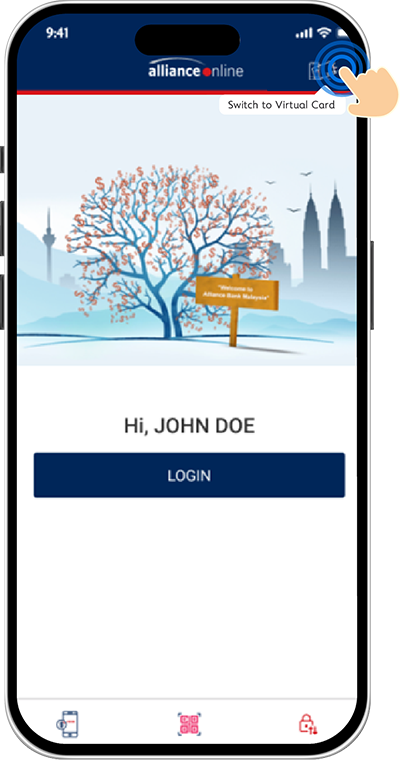
 Tap on Apple Pay and then add to Apple Wallet. You will be directed to Apple Wallet. Follow the on screen instructions.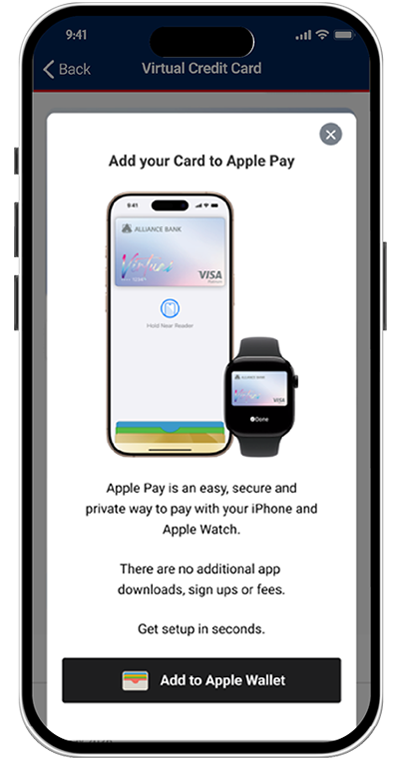
 You’re ready to use Apple Pay.
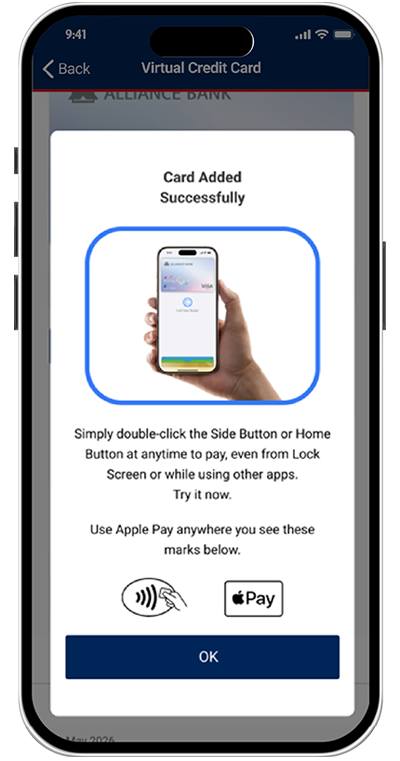 Go to Virtual Credit Card in the allianceonline mobile app. Tap on Apple Pay and then add to Apple Wallet. You will be directed to Apple Wallet. Follow the on screen instructions. You’re ready to use Apple Pay.
The card benefits you love. With Apple Pay.
When you use your Alliance Bank Visa Credit Card with Apple Pay, you'll get the benefits and rewards you love - just like you would with your physical card.Frequently Asked Question
Apple Pay is a secure, easy and private way to pay with your Apple device at contactless payment terminals, in apps, and on participating websites, using your Apple devices such as iPhone, Apple Watch, iPad and Mac.
Apple Wallet is a digital wallet application that is pre-installed on Apple devices; where your eligible Alliance Bank Visa Credit Card(s) can be stored digitally, together with other supported items such as payment cards, boarding passes, tickets and loyalty cards.
Apple Wallet is a digital wallet application that is pre-installed on Apple devices; where your eligible Alliance Bank Visa Credit Card(s) can be stored digitally, together with other supported items such as payment cards, boarding passes, tickets and loyalty cards.
Apple Pay works with compatible iPhone, Apple Watch, iPad, Mac and Apple Vision Pro models. For the latest list of compatible devices, please refer to Apple Support at https://support.apple.com/en-us/102896.
There will be no charges from Apple for using Apple Pay in stores, online or in apps. Standard bank fees and charges for your Alliance Bank Visa Credit Card(s), where applicable, will continue to apply.
All eligible Alliance Bank Visa Credit Card(s) are available for registration with Apple Pay, subject to the Bank’s eligibility criteria and card status.
To get started, you will need to have:
- A compatible Apple device
- Eligible Alliance Bank Visa Credit Card(s)
- An Apple Account signed in on your device
- Face ID, Touch ID, Optic ID or device passcode set up on your device
- The latest version of iOS, iPadOS, watchOS, macOS or visionOS, where applicable
No. Apple Wallet is pre-installed on compatible Apple devices. You may access Apple Wallet on your device or go to Settings > Wallet & Apple Pay to add and manage cards.
1) Virtual Credit Card
Step 1 - Ensure your Apple device is compatible and that you have signed in with your Apple Account.
Step 2 - Log in to your Virtual Credit Card on the allianceonline mobile app, select the “Add to Apple Wallet” option and follow the authentication steps as required. Once approved, an image of your credit card will be displayed in Apple Wallet, allowing you to make payments directly from your Apple device.
2) Plastic Credit Card
Open Apple Wallet, tap “+” or “Add Card”, and input or scan your Alliance Bank Visa Credit Card(s). Follow the authentication steps as required. Once approved, an image of your card will be displayed in Apple Wallet, enabling you to make payments from your Apple device.
Step 1 - Ensure your Apple device is compatible and that you have signed in with your Apple Account.
Step 2 - Log in to your Virtual Credit Card on the allianceonline mobile app, select the “Add to Apple Wallet” option and follow the authentication steps as required. Once approved, an image of your credit card will be displayed in Apple Wallet, allowing you to make payments directly from your Apple device.
2) Plastic Credit Card
Open Apple Wallet, tap “+” or “Add Card”, and input or scan your Alliance Bank Visa Credit Card(s). Follow the authentication steps as required. Once approved, an image of your card will be displayed in Apple Wallet, enabling you to make payments from your Apple device.
No. Supplementary card(s) need to be registered separately.
Yes, you can add your card to more than one compatible Apple device on Apple Pay, subject to the maximum number of devices allowed by the Bank and Apple.
Yes, you can register your Alliance Bank Visa Credit Card(s) into multiple supported mobile wallets at the same time, subject to card eligibility and each wallet’s device requirements.
Yes. If your card is verified and successfully added to Apple Wallet, it is ready to be used for Apple Pay transactions.
Yes. You may use Apple Pay overseas where Apple Pay or contactless Visa payments are accepted, subject to merchant acceptance, network availability and the terms of your Alliance Bank Visa Credit Card(s).
For iPhone:
- Double-click the side button or use the relevant Apple Pay shortcut on your iPhone.
- Select your Alliance Bank Visa Credit Card(s) in Apple Wallet.
- Authenticate with Face ID, Touch ID or your device passcode.
- Hold the top of your iPhone near the contactless terminal until the payment is completed.
- Double-click the side button.
- Select your Alliance Bank Visa Credit Card(s).
- Hold your Apple Watch near the contactless terminal until the payment is completed.
Unlike contactless/payWave transactions made using physical cards where there is a Ringgit Malaysia Two Hundred Fifty (RM250) limit per transaction, there is no transaction limit for contactless/payWave transactions made via Apple Pay. Transaction limit for Apple Pay is still subjected to the credit limit of Alliance Bank Visa Credit Card(s) account.
Apple Pay uses tokenisation and device security features are required for every purchase on your iPhone, Apple Watch, Mac, or iPad to protect your payment information. Your actual credit card number and identity are not shared with merchants during payment, and your actual credit card numbers will not be stored on your device or on Apple servers. Apple will not send your actual credit card number to the merchants and Apple does not keep transaction information that can be tied back to you.
When your card is added to Apple Pay, a device-specific token is used for transactions. Payments must be authorised using Face ID, Touch ID, Optic ID or your device passcode, depending on the device used.
When your card is added to Apple Pay, a device-specific token is used for transactions. Payments must be authorised using Face ID, Touch ID, Optic ID or your device passcode, depending on the device used.
No. Apple Pay does not have access to your Alliance Bank credit card account details. You may only see Apple Pay-related card and transaction information available in Apple Wallet, subject to device and transaction settings.
If you are experiencing issues with card enrolment, declined transactions, or other payment-related concerns, please contact Alliance Bank Contact Centre at 03-5516 9988.
For Apple Wallet or device-related issues, such as app, device or software issues, please contact Apple Support directly at https://getsupport.apple.com/
For Apple Wallet or device-related issues, such as app, device or software issues, please contact Apple Support directly at https://getsupport.apple.com/
No. For security reasons, Apple Pay may not work on devices with modified or compromised software. Please use Apple Pay only on compatible Apple devices with the latest official software.
Rest assured that your login details for your allianceonline mobile app are distinct from Apple Pay. Therefore, changing or updating your login details on the allianceonline mobile app will not affect your Apple Pay setup.
For security reasons, we highly recommend using different passwords to help protect your accounts from potential fraud.
Apple Pay requires an active internet connection to enable you to add your Alliance Bank Visa Credit Card(s). Make sure you are connected to the internet via Wi-Fi or mobile data, your Apple device is compatible, your software is updated, and your credit card is in good standing.
If you are still unable to add your Alliance Bank Visa Credit Card(s) after following the above steps, please contact Alliance Bank Contact Centre at 03-5516 9988.
If you are still unable to add your Alliance Bank Visa Credit Card(s) after following the above steps, please contact Alliance Bank Contact Centre at 03-5516 9988.
In the event of theft, loss, or unauthorised use of your Apple Pay tokenised card, you are required to notify Alliance Bank immediately by contacting our Contact Centre at 03-5516 9988. Upon receiving your notification, your tokenised card will be deactivated.
You may also use Apple’s Find My service to mark your device as lost or remotely manage cards on the device, where available.
You may also use Apple’s Find My service to mark your device as lost or remotely manage cards on the device, where available.
If you have contacted us to remove your Alliance Bank Visa Credit Card(s) from Apple Pay, you will need to add your card to Apple Pay again before using it on that device.
You may continue to use your credit card on Apple Pay while waiting for the replacement physical credit card to arrive, and after your new card is activated, provided the card number remains the same and your token remains active. If your replacement card comes with a new credit card number, you will need to add it to Apple Pay again.
You should immediately remove your credit card from Apple Pay and contact Alliance Bank Contact Centre at 03-5516 9988. Once you receive your new physical credit card with a new credit card number, you will need to add it to Apple Pay again.
Before recycling, selling or giving away your device, please remove all Alliance Bank Visa Credit Card(s) from Apple Wallet. You may remove the card in Apple Wallet or through Settings > Wallet & Apple Pay, depending on your device.
New Device
Please remove all Alliance Bank Visa Credit Card(s) from Apple Wallet on your current/old device where possible. You will need to set up Apple Pay and add your payment card information again on the new device.
Reformat/Reset/Service
Payment information stored in Apple Wallet may be removed when your device is reset or serviced. You will need to set up Apple Pay and add your payment card information again.
Please remove all Alliance Bank Visa Credit Card(s) from Apple Wallet on your current/old device where possible. You will need to set up Apple Pay and add your payment card information again on the new device.
Reformat/Reset/Service
Payment information stored in Apple Wallet may be removed when your device is reset or serviced. You will need to set up Apple Pay and add your payment card information again.
Yes, you may add your credit card to Apple Pay while you are out of Malaysia, provided your card is eligible and verification can be completed. Please note that SMS verification is subject to the relevant telco charges.
An active internet connection is generally not required for in-store contactless purchases after your card has been added to Apple Pay.
However, internet connection may be required for card setup, card verification, transaction notifications, in-app purchases, online purchases, and periodic updates. For a better user experience, we recommend using Apple Pay with an internet connection, whether mobile data or Wi-Fi.
However, internet connection may be required for card setup, card verification, transaction notifications, in-app purchases, online purchases, and periodic updates. For a better user experience, we recommend using Apple Pay with an internet connection, whether mobile data or Wi-Fi.
Yes. You can view recent transactions made with your provisioned Alliance Bank Visa Credit Card(s) in Apple Wallet, subject to device settings and availability. Select your card in Apple Wallet to view recent Apple Pay transactions made with that card. You may also receive real-time notifications after Apple Pay purchases if notifications are enabled and your device has an active internet connection.
Yes. Using Apple Pay is the same as using your Alliance Bank Visa Credit Card(s). All applicable reward points or cashback on your Alliance Bank Visa Credit Card(s) will be earned for successful Apple Pay transactions, subject to your card terms and conditions.
Same Card Number Replacement (Expiry or Wear & Tear)
If the replacement credit card is due to expiry or wear and tear (same card number replacement), you do not need to add the card into Apple Pay. Once you received the card and activate the card, the existing card / token in your Apple Pay will continue to work;
Different Card Number Replacement (Lost, Stolen, or Fraud)
If the replacement card is of a different card number, you will need to add your new card into Apple Pay.
If the replacement credit card is due to expiry or wear and tear (same card number replacement), you do not need to add the card into Apple Pay. Once you received the card and activate the card, the existing card / token in your Apple Pay will continue to work;
Different Card Number Replacement (Lost, Stolen, or Fraud)
If the replacement card is of a different card number, you will need to add your new card into Apple Pay.
The merchant terminal’s response is the most accurate response. Your device may require some time to refresh the transaction status. With data connection, the latest transaction status will be updated in your transaction history, where available.
Cancelling a payment made through Apple Pay is similar to a physical credit card transaction. Please contact the merchant from whom you made the purchase and request the cancellation or void of the payment.
If you are asked for the last 4 digits of your card, please refer to the Apple Pay card information in Apple Wallet, as the device account number or virtual card number may be different from your physical card number.
If you are asked for the last 4 digits of your card, please refer to the Apple Pay card information in Apple Wallet, as the device account number or virtual card number may be different from your physical card number.
